Bulk editing is useful when a supplier sends a new price list or a store needs consistent product information. The difficult part is deciding exactly which records and fields should change.
My preferred approach is to keep each update narrow, traceable, and easy to check. Matrixify provides import and export tools, but the quality of the result still depends on the file you prepare and the settings you choose.
Define one update clearly
Start with a sentence that describes the job. For example: “Update selling prices for the products matched to this supplier file.” List the fields you intend to change and the ones that are outside the task.
Keep unrelated cleanup work in a separate batch. Combining price changes, product regrouping, and option renaming makes it harder to identify which change caused an unexpected result.
For pricing work, confirm the business rule before calculating anything. Cost, markup, discounts, and tax treatment should be written down and approved by the store owner. A technically successful import can still contain the wrong prices.
Export the current records first
Keep a dated export of the data you are about to update, plus a separate working copy. Your working file should be easy to distinguish from the original export and the supplier’s source file.
Decide what a recovery would require. A product-data export is useful, but do not assume it is a complete backup of every app, image file, or external system. Matrixify’s import safety checklist recommends backing up the affected data and considering connected systems.
Match the right records before calculating changes
Use identifiers from the store export to establish which existing products or variants a supplier row represents. Do not assume every supplier SKU is unique or formatted consistently.
Keep leading zeros, check for extra spaces, and separate unmatched rows from confirmed matches. Investigate duplicate matches instead of selecting the first result automatically. A supplier file can also contain discontinued items or items that are not yet listed in the store.
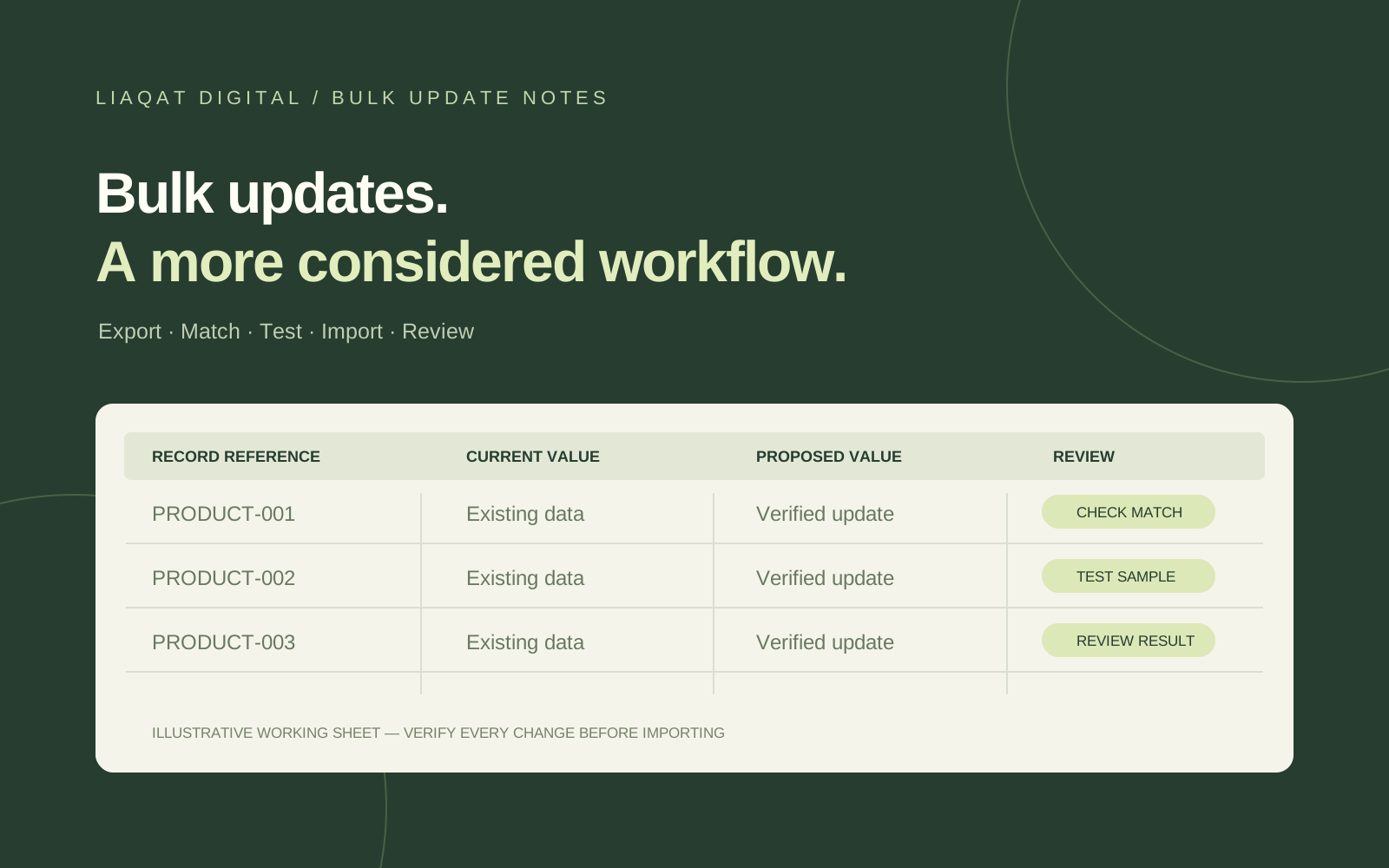
For each proposed change, keep the old value, the new value, and the matching reference in your working sheet. That gives you a practical audit trail when someone asks why a particular item changed.
Prepare the format for the tool you are using
Use Matrixify’s documented column names and the appropriate sheet or entity selection. Check which columns the app recognizes before proceeding. Do not assume Shopify’s native CSV importer and Matrixify interpret every field in the same way.
This distinction matters for partial updates. In Shopify’s native CSV overwrite flow, an included optional column with blank cells can clear existing values, while an omitted optional column generally leaves those values unchanged. Shopify also documents dependencies between certain columns. Read its CSV import guidance before reusing a native Shopify file.
Use a dry run, then a representative test
Matrixify’s Dry Run checks file structure and simulates processing without making the actual Shopify import. It does not catch every problem that can arise when Shopify processes a real request. The official import options guide explains this limitation.
After reviewing the dry run, test a small, representative selection in a suitable test environment. Include an ordinary product, a product with several variants, and a record with an unusual identifier or optional field. Check whether each item changed as intended.
A sample that contains only the simplest products tells you little about the difficult rows in the full file.
Review the results, not just the completion message
Download Matrixify’s Import Results file. Its Import Result and Import Comment columns help distinguish completed items from errors or warnings. Review those messages before deciding what needs another import.
A canceled Matrixify job does not automatically reverse changes already completed. The import documentation explains how partial results are retained, so treat cancellation as stopping further work rather than undoing the job.
Check the storefront and keep the evidence
Open several updated products in the admin and on the storefront. Confirm prices and options, and inspect any image or description fields included in the update. If the store connects to an accounting, inventory, or fulfillment system, check the relevant downstream records too.
Keep the source file, dated export, working sheet, and import results together. That turns a one-off spreadsheet exercise into a process your team can repeat.
Need help preparing a supplier file or managing a large Shopify update? Send me your project details, including the type of update and a sample of the data.